What is DAX Query View in Power BI?
The DAX Query View in Power BI is a feature that allows you to write and execute DAX queries directly against your data model. This can be incredibly useful for testing calculations, exploring data, and creating custom reports. It is available in Power BI Desktop under the “Modeling” tab, where you can create new tables and measures using DAX.
First Step: Creating Your First Query
To get started with DAX Query View, follow these steps: For example, to create a simple table summarizing total sales by product, you can use the following query:
EVALUATE
SUMMARIZE(
    Sales,
    Sales[Product],
    "Total Sales", SUM(Sales[Amount])
)
Quick Queries (Tables)
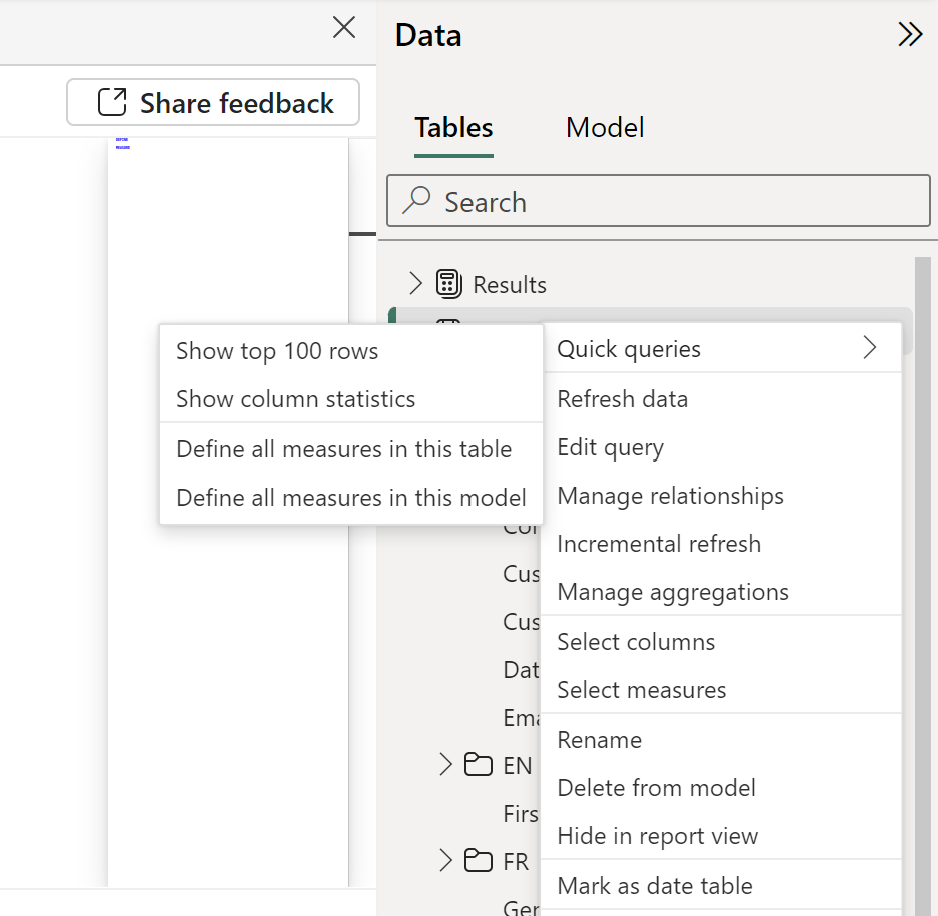
- Show Top 100 Rows: This option allows you to quickly preview the top 100 rows of a table. When you right-click on a table in the Data pane and select “Quick Queries” -> “Show Top 100 Rows,” a new query tab is created. This tab displays a DAX query that retrieves the first 100 rows from the selected table. This feature is particularly useful for getting a quick look at the data without having to write a custom DAX query or create a visual.
- Show Column Statistics: This option provides summary statistics for a selected column. When you right-click on a column and choose “Quick Queries” -> “Show Column Statistics,” it generates a summary that includes metrics like the count of distinct values, minimum, maximum, average, and standard deviation. This helps you understand the distribution and characteristics of the data in that column, which can be very useful for data exploration and validation.
- Define All Measures in This Table: This option allows you to generate a DAX query that includes all the measures defined within a specific table. When you right-click on a table in the Data pane and select “Quick Queries” -> “Define All Measures in This Table,” Power BI creates a query that lists all the measures associated with that table. This is particularly useful for reviewing and managing the measures in a single table, ensuring consistency and making it easier to debug or optimize your DAX formulas.
- Define All Measures in This Model: Similar to the previous option, this one generates a DAX query that includes all the measures defined across the entire data model. By right-clicking anywhere in the Data pane and selecting “Quick Queries” -> “Define All Measures in This Model,” you get a comprehensive view of all the measures in your model. This is extremely helpful for a holistic review of your measures, allowing you to see how they interact and ensuring that there are no conflicts or redundancies.
Quick Queries (Measures)
- Evaluate: The EVALUATE statement is used to execute a DAX query and return the results as a table. When you select “Quick Queries” -> “Evaluate,” Power BI generates a query that retrieves data based on the specified table or expression. This is the most basic form of a DAX query and is essential for viewing the results of your data model. For example:
EVALUATE
    SUMMARIZECOLUMNS(
        'Sales'[Product],
        "Total Sales", SUM('Sales'[Amount])
    )
- Define and Evaluate: The DEFINE statement allows you to create temporary measures, variables, or tables within your DAX query. When combined with EVALUATE, it enables you to define these elements and then evaluate them in the same query. This is useful for testing new calculations or creating complex queries without altering your data model. For example:
DEFINE
    MEASURE 'Sales'[Total Sales] = SUM('Sales'[Amount])
EVALUATE
    SUMMARIZECOLUMNS(
        'Sales'[Product],
        "Total Sales", 'Sales'[Total Sales]
    )
- Define with References and Evaluate: This option extends the DEFINE and EVALUATE functionality by allowing you to reference existing measures or columns in your model. It helps in creating more dynamic and context-aware queries. By defining new calculations that reference existing ones, you can build on your current model without making permanent changes. For example:
DEFINE
    MEASURE 'Sales'[Total Sales] = SUM('Sales'[Amount])
    MEASURE 'Sales'[Sales Growth] =
        IF(
            HASONEVALUE('Date'[Year]),
            [Total Sales] - CALCULATE([Total Sales], PREVIOUSYEAR('Date'[Date])),
            BLANK()
        )
EVALUATE
    SUMMARIZECOLUMNS(
        'Date'[Year],
        "Total Sales", 'Sales'[Total Sales],
        "Sales Growth", 'Sales'[Sales Growth]
    )
These features enhance your ability to interact with and analyze your data directly within the DAX Query View, making it easier to experiment with and refine your DAX queries.
Update Model with Changes

Update Model with Changes: This option allows you to apply changes made in your DAX query directly to the data model. When you define new measures, variables, or tables within a DAX query using the DEFINE statement, you can use the “Update Model with Changes” button to add these elements to your data model permanently. This is particularly useful for testing new calculations and then integrating them into your model without having to recreate them manually.
DAX Query View with Copilot
In Power BI Desktop, you can use the DAX Query View with Copilot to enhance your data analysis experience. This feature allows you to:
- Generate DAX Queries: Simply describe what you need in natural language, and Copilot will create the corresponding DAX query for you.
- Explain DAX Queries: Highlight any DAX query and ask Copilot to explain what it does, making it easier to understand complex queries.
- Create and Adjust Measures: Define new measures or adjust existing ones directly within the DAX Query View, with Copilot providing inline suggestions and explanations.
- Debug and Optimize: Use Copilot to identify potential issues in your DAX queries and get recommendations for optimization.
- Learn DAX Functions: Ask Copilot about specific DAX functions or concepts, and it will provide detailed explanations and examples.
Conclusion
Mastering the DAX Query View in Power BI can significantly enhance your data analysis capabilities. By leveraging features like Quick Queries, the ability to define and evaluate measures, and the integration with Copilot, you can streamline your workflow, gain deeper insights, and create more robust data models. Whether you’re testing new calculations, exploring data, or optimizing your reports, the DAX Query View provides a powerful environment to elevate your Power BI skills.